About TMEditX Tools
TMEditX Tools are some free tools that we offer which are helpful to the packager once they have an MSIX package. Originally part of the licensed TMEditX Editor product, these were split off so that we could provide them to a wider audience at no cost.
These tools may be used to locally deploy, test, and troubleshot your MSIX package as part of a "smoke test", prior to moving on to User Acceptance Testing (UAT).
Delivered as an MSIX package, the package currently contains two programs:
- MsixDeploy
- ParsePsfDebugLog
MsixDeploy
This tool acts as your local deployment engine for your MSIX and MSIX App Attach packages. You simply configure it to look at a folder where you keep your packages. It finds them and lets you install/uninstall them without involving the overhead of a management server like Intune, Mem, CVAD, or Horizon.. Just fast test and go.
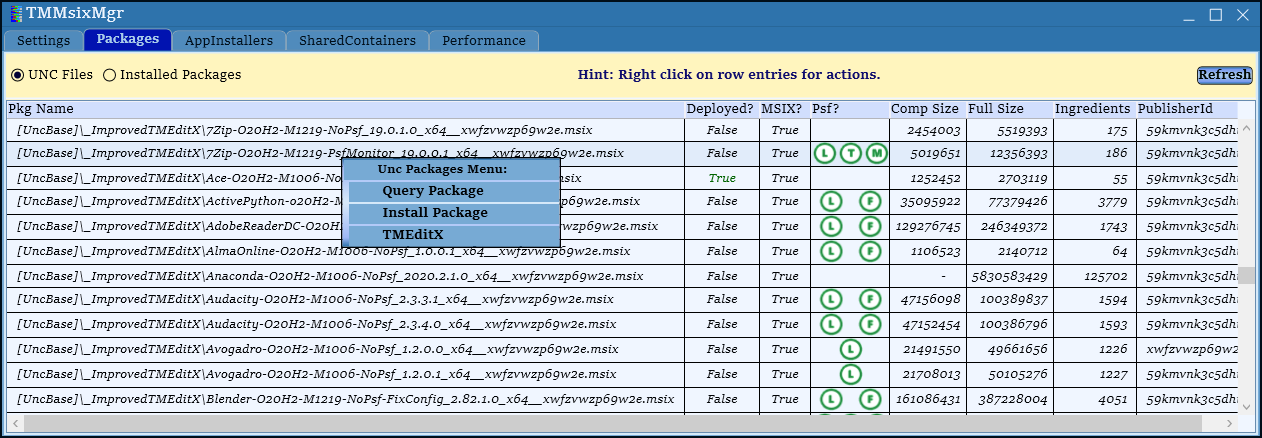
After configuration, launch it and see your packages as shown below. Information on the deployment state is shown, as well as information on its use of the PSF. Right click to get more information on a package, install or uninstall it. If TMEditX Editor is installed it also offers to edit the package..
Here we can see the deployed packages on the local machine.
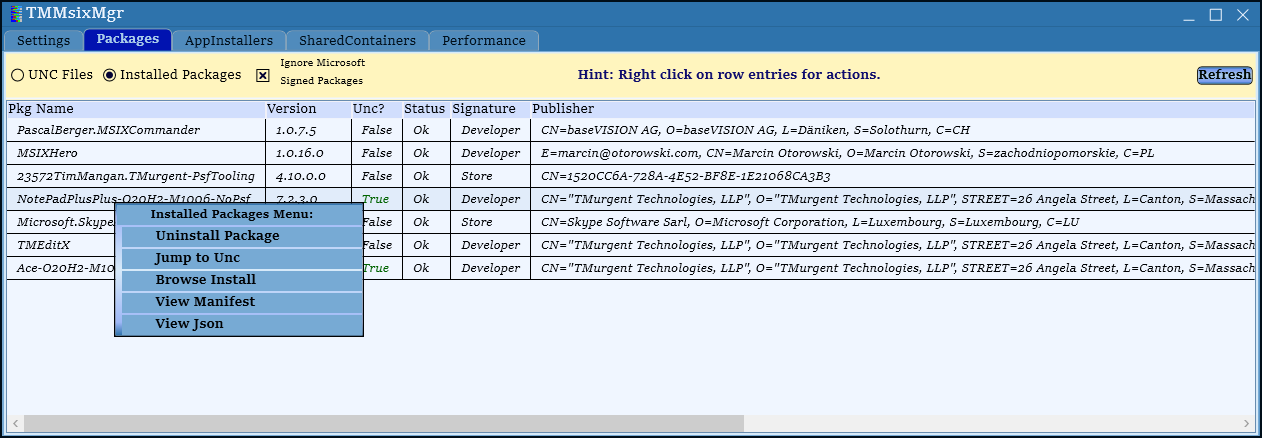
Right click on a package to uninstall, investigate, or do some debugging in the container.
ParsePsfDebugLog
When the PSF is in use, the config.json file controls how much logging the PSF does. By default, we emit information during the launch and shutdown of every container process, but full runtime coverage may be requested as well.
This information is output to the debug console port, suitable for viewing in a tool like DebugView. If you save that information off to a file, ParsePsfDebug will decode the log information and provide a convenient GUI to help you find what you are looking for.
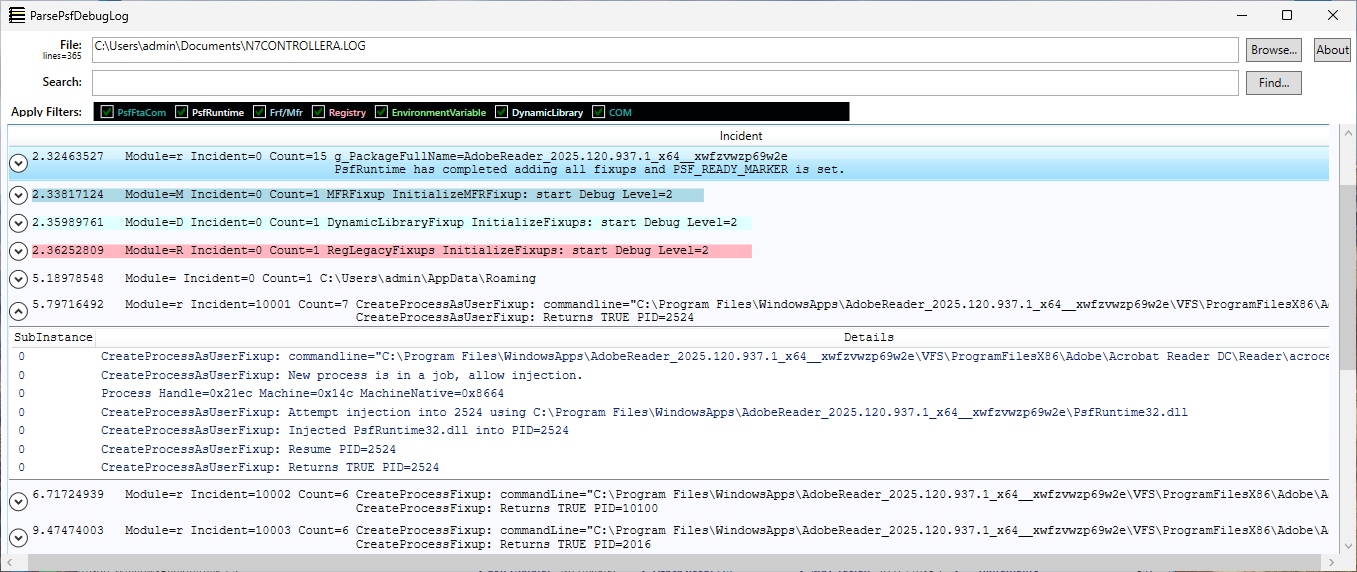
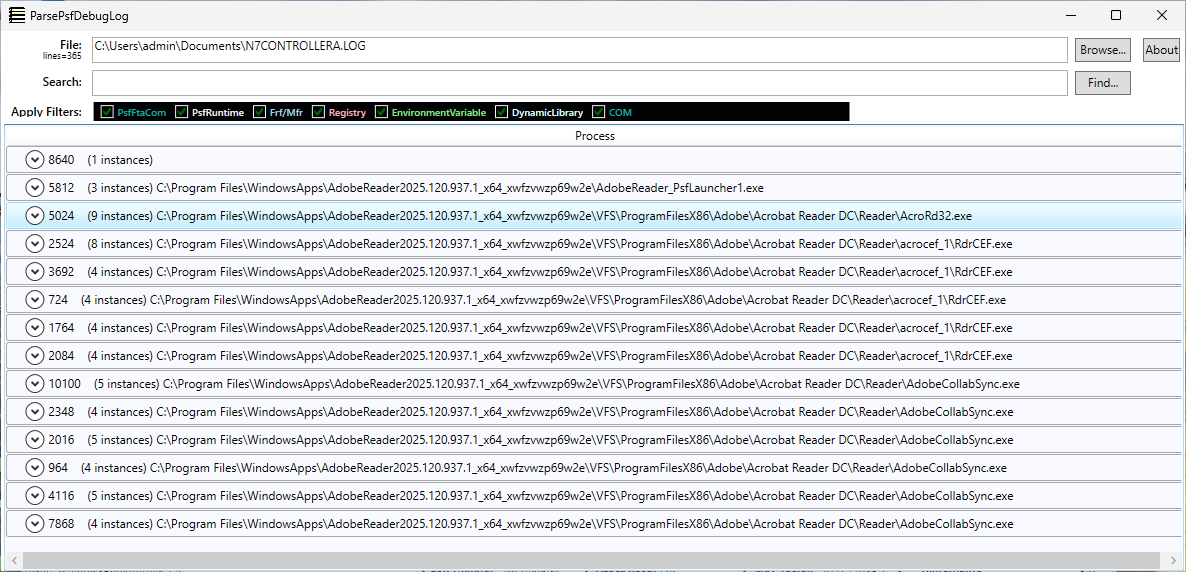
Filter down by process, and/or PSF Module, and use search when needed. Here is a look right after opening the log, which is showing you the process level detail.
Open up a process to view the correlated events of that process. Note the color coding by module (blue=RegLegacyFixup, pink=MfrFixup).
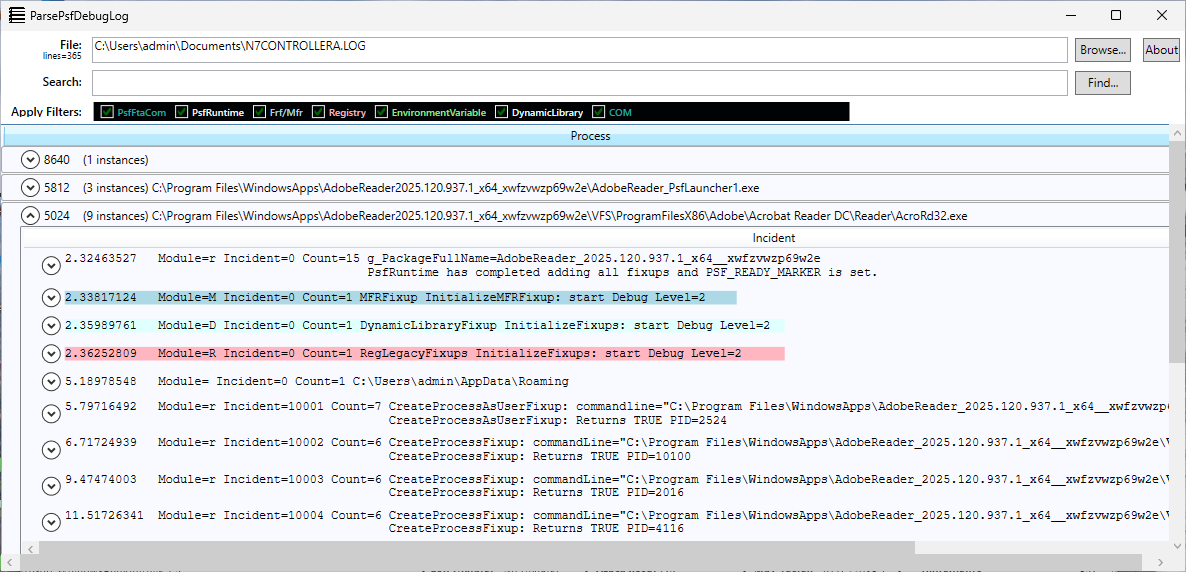
The unexpanded view of an event provides two lines, what the app requested and the final result. Open up an event to see all of the detail that was correlated to the event.