App-V Manifest Editor (AVME) Documentation: Scripts Tab
This is why you use this tool, to embed the scripts directly into the package AppXMannifest rather than the external Deployment and User Configuration files.
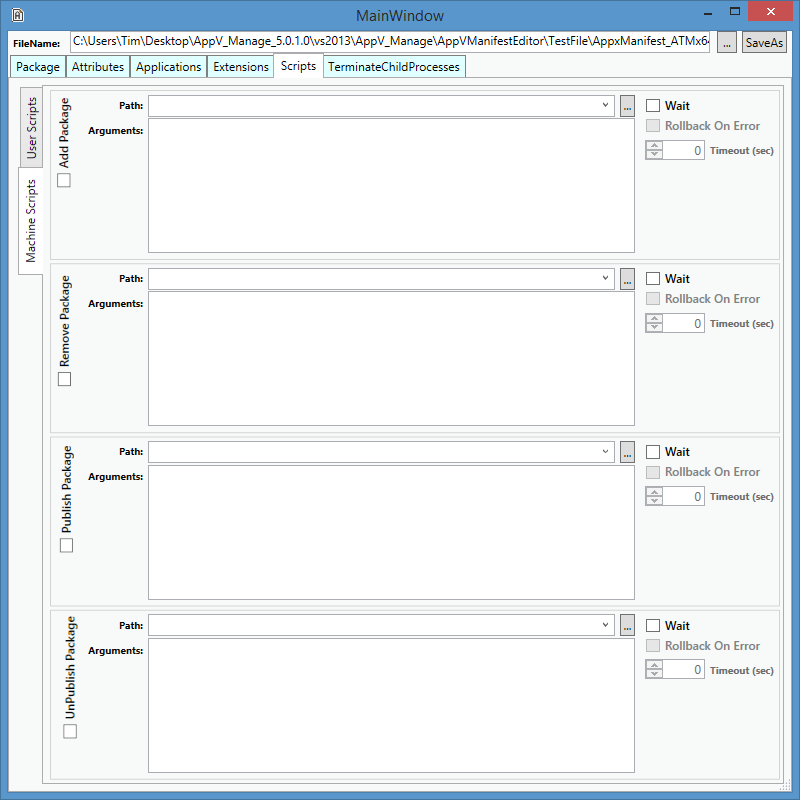
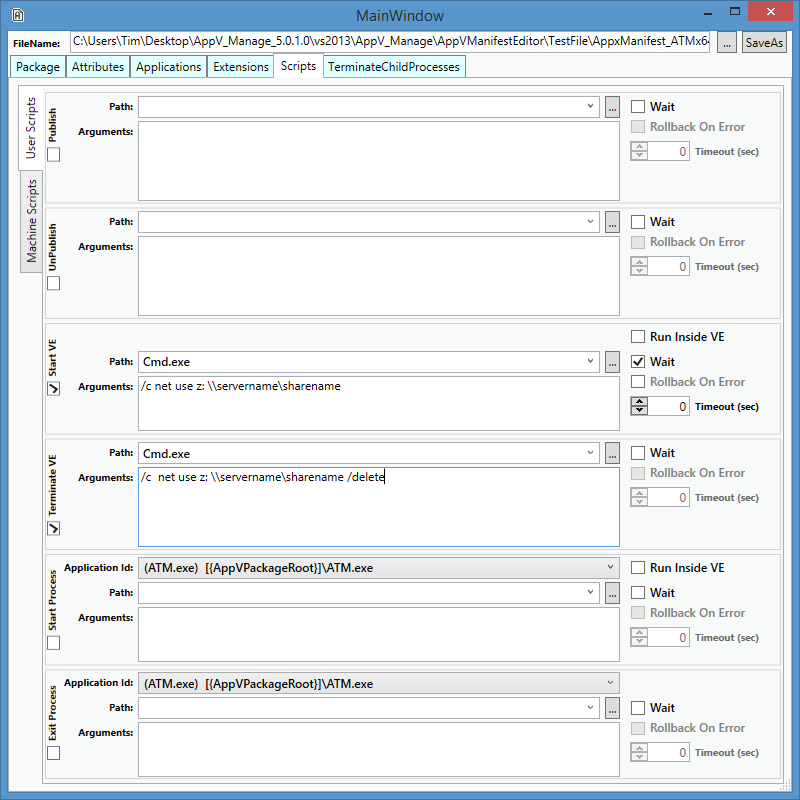
You can add scripts directly into the package. No need to edit the external xml files any more! The interface works much like the ACE tool for the external configuration files. You must check the checkbox (on the left) to add in the entry. The tabs on the left provide access to the six user scripts, or four machine scripts.
The Path fields are pull-down menus that allow you to select many of the standard executables, but you may also type in an entry. The ApplicationId pull-down presents a list of the package ApplicationIds from the Applications tab so that you can't mistype them.
As a "Pretty-Good-Practice", we would recommend that for non-simple scripts, you should:
- Create script files for each script scenario.
- Use a script file name that includes the scenario, such as "UserPublish.cmd" and "MachinePublish.cmd".
- In the Sequence editor, copy them into the pre-created Scripts Folder (you can't do that it monitoring mode, only in the sequence editor).
- Then edit using this tool.
- Check the appropriate script type checkbox,
- Select CMD.exe in the Path pull-down field,
- Type "/c ..\Scripts\UserPublish.cmd" in the Arguments field.
- In most cases, you want to check the Wait checkbox.
- For Add/Publish/Start scripts, might also want to check Rollback On Error checkbox (but typically not for Remove/Unpublish/Terminate scripts).
User Scripts
Machine Scripts